1. Setup Procedure
Start the BeamFinder setup procedure by entering your location. This can be done in following three ways:
1. Input of latitude/longitude in degrees and minutes
2. Search for a city name
3. Click on a world map
The next setp is to define the frequency band you are interested in, C or Ku. The final step is to set a parameter which defines a receivable beam. You can choose between entering the dish size (enter the width if you are using an offset dish) or the minimum signal strength (EIRP) required by your equipment to receive a satellite beam. Please note that if you select dish size without entering any value, the system will estimate the required dish size for each beam. When you have finished the setup procedure, the selected location, frequency band and dish size/minimum EIRP will be displayed. Your location will also be indicated by a red dot in the small world map and in other satellite footprint maps on the website.
2. Search Procedure
If you have successfully completed the setup procedure, you can search for satellite beams covering your location. Here you can select three search modes:
1. List beams covering my location that might be receivable
This mode displays satellite beams where the official coverage area ("footprint") covers the selected location and also has, or might have, sufficient signal strength (EIRP).
2. List beams that might be receivable
This mode is as above, but will also include beams where the official coverage does not cover your location. Please note that you still might be able to pick up signals with a large dish and/or high quality equipment.
3. List all beams above horizon
This mode will display all satellite beams above horizon at the selected location.
Please note that if you have selected dish size in the setup procedure without entering any value, search mode 2 and 3 will produce the same result. To start the search, enter the security code and click on the Run BeamFinder button.
3. The BeamFinder Search Result
The search result is a list of satellites, sorted by position, and below each satellite you will find available beams. Below the satellite name you might find the following text "Beam information not provided by satellite owner or currently not available", indicating that there is no coverage information available for this particular satellite. You might also find this text "One or more beams are missing", indicating that there are one or more beams with no coverage information available.
For each satellite the corresponding azimuth, elevation, obstacle factor and LNB skew will be calculated. Azimuth, elevation and LNB skew are used to aim your dish at the satellite according to the picture below:
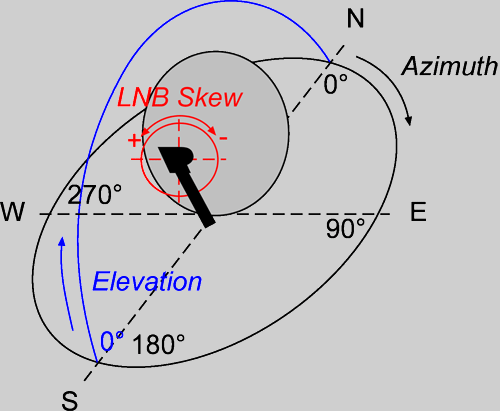
If the value for LNB skew is negative, you should tilt the LNB this number of degrees in a clockwise direction when facing the dish. If LNB skew is positive, the LNB should be tilted in a counterclockwise direction when facing the dish. Please note that there is no need to tilt the LNB for satellites using circular polarisation. For the Astra satellite fleet, the calculated LNB skew is automatically adjusted for the special polarisation offset used by these satellites.
The obstacle factor is used to determine if an obstacle is blocking satellite reception. Measure the distance to a potential obstacle and multiply by the obstacle factor. If the result is less than the relative height of the obstacle, according to the picture below, the obstacle is blocking the reception.
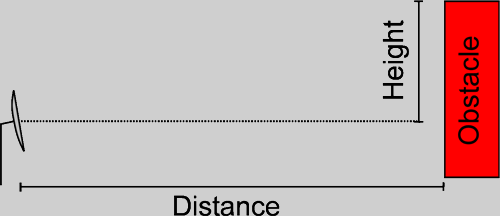
Please note that there is little or no chance of receiving satellites with very small obstacle factor/elevation.
For each satellite beam you will see reception/location status, signal strength (EIRP in dBW) and, if you have selected dish size in the setup procedure without entering any value, an estimated dish size interval in cm. Please consider the dish size only as a rough estimate and talk to your local satellite dealer or other satellite users in your area to get more information. If you click on the beam name, a detailed and overview footprint map will be displayed in a new window and your location is indicated by a red dot.
The reception status is indicated by a green, orange or red icon. A green icon indicates that, according to official coverage information, you should be able to receive the beam. However, do not take this for granted. An orange icon indicates that there is not enough information for the system to determine if the beam is receivable or not. Click on the beam name to study the detailed map and see if it might be possible to receive the beam. As a ground rule, always assume that beams with orange reception status are not receivable. A red icon indicates that, according to official coverage information, the beam is not receivable at your location with your equipment. Please note that you still might be able to pick up signals with a large dish and/or high quality equipment. Also, some satellites are known to "leak" to areas not officially covered.
The location status icon indicates if your location is inside or outside the official beam coverage area.
To see which TV or radio channels you might be able to receive on a particular beam, click on the satellite name and the corresponding satellite page will open in a new window where you can find channel information. Please note that you must check the "beam" column on the page to see which transponders are transmitting on the beam you are interested in.


and TV guide data from the internet
SatStar can provide detailed technical information about commercial geostationary satellites. It can be used by professionals, e.g. for budget link calculations, and can easily be integrated into custom applications.
All data can be stored in a database, including downlink and uplink coverage maps, frequency plans, transmissions, TV/radio channels etc. For more information, please refer to the Satellite Data page.